
The All Returns page provides an aggregate view of all submitted return requests:
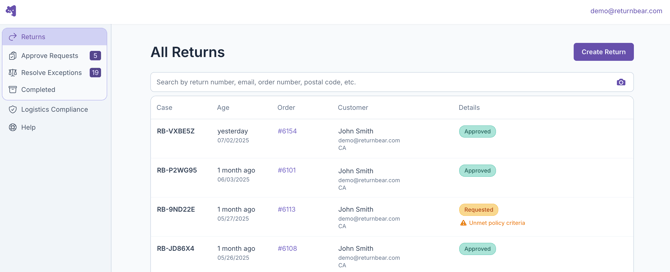
From this page you can create, search for, view, or cancel a specific return.
Creating return cases
To create a return case on behalf of a customer, click on the purple Create Return button to be redirected to the Returns Merchandise Authorization (RMA) Portal where you can begin initiating the return. In order to create a return case on a customer's behalf, you will need all of the following details:
- Order number
- Customer's email address
- Item(s) being returned
- If applicable, item(s) being exchanged for
- Return reason(s)
- Return service
- Payout method
For more information on how to create a return see ReturnBear Return Merchandise Authorization (RMA) Portal.
Searching for existing return cases
If there is a specific return case that you need to locate within the ReturnBear Admin, use the search bar to look it up using one of the following identifiers:

- Return number
- Customer email address
- Order number
- Postal code
Once the search results populate, click on the return case to view its details.
Viewing return cases
Each return case has its own detail page which contains information specific to that return case.
From any return case detail page, you can obtain the following information or take the following actions:
- Return case ID: An alphanumeric identifier beginning with RB- that is used to identify the return case
- Return method: Mail-in or Drop-off
- If the return method is Mail-in, you will also see a Download Shipping Label button in the top right of the page that allows you to access the customer's shipping label if needed
- Order ID: The order number associated with the return – when clicked, the corresponding order will open in Shopify in a new tab
- Exchange order: If the customer has opted to exchange any of their items, a link to the corresponding exchange order in Shopify will be available – when clicked, the exchange order will open in Shopify in a new tab
- Return timeline: This will give you insight into where in the returns process the return is
- Return Items: Here you will find an itemized list of all the items in the return including an image of the item, SKU, product name, colour, size, and return reason
- If a customer has not attested to all of your return policy criteria, a message that looks something like this will be displayed indicating which criteria they did not declare:
- The icon displayed in the top right corner of each item's card indicates the return reason and chosen payout method:
indicates refund to Original Payment method
indicates that the customer will be issued a gift card for Store Credit
indicates Exchange
- If a customer has not attested to all of your return policy criteria, a message that looks something like this will be displayed indicating which criteria they did not declare:
- Customer: The customer's name, shipping address, and email can be found here
- Return Summary: Acting like a receipt for the return, here you can view a complete breakdown of the customer's payout
- You can also view any applicable Fees & Incentives applied to the return. For more information, see Editing or waiving fees and incentives
It is also possible to resend emails to customers from this page. For more information, see Resending emails to customers.
Cancelling return cases
Return cases that are still in Pending or Approved status can be cancelled if needed. To cancel a return case, navigate to its detail page and click the red Cancel button.
After clicking Cancel, you will be required to confirm the cancellation before it is finalized as cancelling a return case cannot be undone.
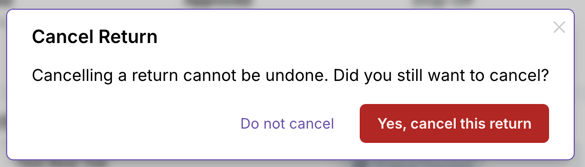
Click Do not cancel if you do not wish to proceed with cancelling the return or click Yes, cancel this return to cancel the return.
After a return case is cancelled, it can be resubmitted if needed. For more information see: